
Use Build manually when you already know the audience and copy you want to run.
You will review the exact selected, eligible, and blocked Lead counts plus rendered message examples before Launch commits the audience and queues approved work.
Before you start
You need:
- Operator access to Lemma;
- an active static List containing 1–5,000 Leads;
- an active LinkedIn Sender with a usable provider account and no current retry boundary;
- the exact LinkedIn message intent;
- a playbook appropriate for the Leads’ LinkedIn relationship state.
If a List or Sender cannot be loaded, the wizard distinguishes that error from missing setup and keeps Launch unavailable.
Open the Manual wizard
Open New Mission, then choose Build manually.
Step 1: Leads & Sender
Name the Mission
Enter a name that identifies the audience and purpose.
Choose Reviewed List
Select an active static List with 1–5,000 Leads. The wizard shows its current member count. Membership is frozen atomically at Launch.
Choose Sender
Select a Sender shown as ready. Lemma checks readiness again during Review and Launch.
Step 2: Sequence
Choose one playbook:
Invite, then message
- optional invitation note;
- invitation delay;
- required LinkedIn message;
- delay after connection acceptance.
Invitation notes are supported only for paid-active, Sales Navigator, or Recruiter Sender classes. Leave the note blank unless Lemma has confirmed that the connected Sender supports it. New, free, or unknown tiers cannot execute a note.
When supported, the rendered invitation note for each Lead must be no longer than 200 characters. The current Review step checks length and variables, but it does not prove the Sender’s account class. An unsupported or unknown tier can therefore become a Problem after Launch.
Message connected Leads
- required LinkedIn opener;
- message delay;
- required follow-up;
- follow-up delay after the opener is confirmed Sent and no reply exists.
Delays must be whole days from 0 to 30.
Use variables safely
Available variables are:
{{first_name}}{{last_name}}{{full_name}}{{title}}{{company}}
Use an explicit fallback when a value may be missing, for example {{title|your role}}. A missing required value blocks that Lead during Review.
Step 3: Review
Choose Review exact audience. The Review step shows:
- Selected, Eligible, and Blocked counts;
- blocked counts grouped by reason;
- the effective Sequence and delays;
- up to 10 rendered examples, including blocked examples where available.
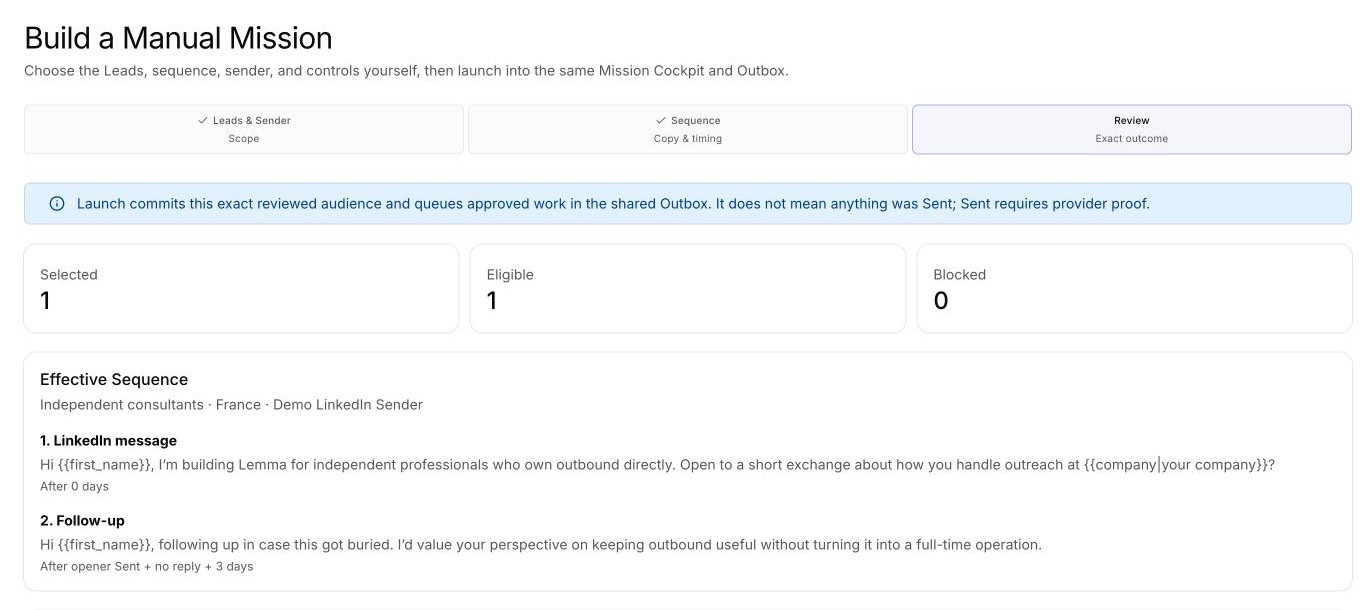
Common pre-launch block reasons include Do not contact, missing LinkedIn identity, active outreach conflict, wrong connection state for the playbook, a missing variable, or an invitation note rendered over 200 characters.
Launch Mission commits this reviewed audience and queues approved work. Work can become eligible immediately when its Sender, schedule, and other conditions allow. Outbox is not a guaranteed second approval gate.
If the List, eligibility, copy, playbook, or Sender changes, choose Refresh review before Launch. Launch remains disabled when no Lead is eligible.
Launch and recovery
Choose Launch Mission only after the exact Review is correct.
- Success means tasks were put in the queue; it does not mean LinkedIn sent anything.
- If the launch response is lost, use Retry same launch. Lemma reconciles the durable command instead of creating a second Mission.
- If the review became stale or active outreach changed, refresh the review rather than forcing Launch.
After Launch
The Manual Mission shows the frozen audience counts, queue truth, exclusions, and direct Pause, Resume, and Open in Outbox controls. It does not have the Lemma-led conversation or approval menu.
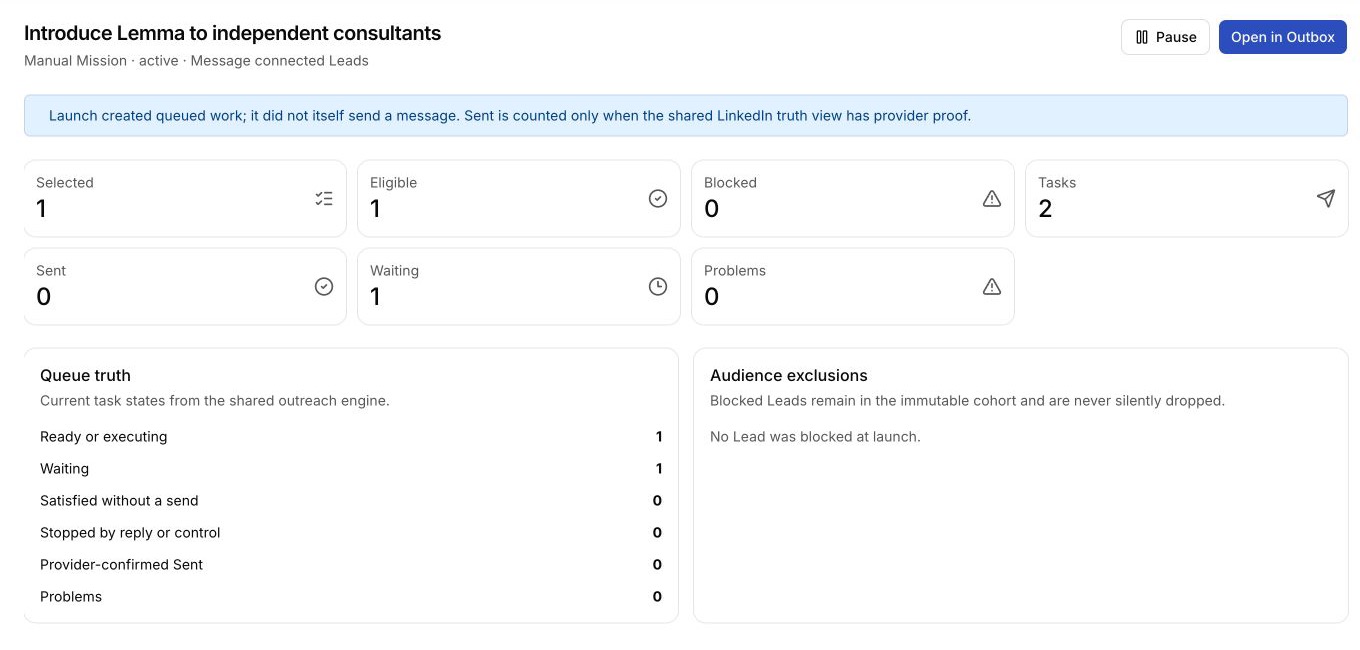
Open Outbox to monitor the queued Manual Sequences. Use only the actions shown for that Sequence, such as editing the current reviewable body, approving a revision, retrying a safe task, pausing the Manual Mission, stopping the Sequence, or queuing an available suggested reply.