
LinkedIn import uses a connected LinkedIn account to fetch profiles and add or match Leads.
The import runs in the background. Its card shows progress, saved Leads, matches, skips, and the final state.
Before you start
You need:
- a connected LinkedIn account under Settings → Sender;
- a LinkedIn people-search, Sales Navigator search, or
linkedin.com/in/…profile URL; - a maximum profile count for a search import;
- an optional destination List.
The connected account must support the search product. For example, a Classic LinkedIn account cannot run a Sales Navigator search.
Start the import
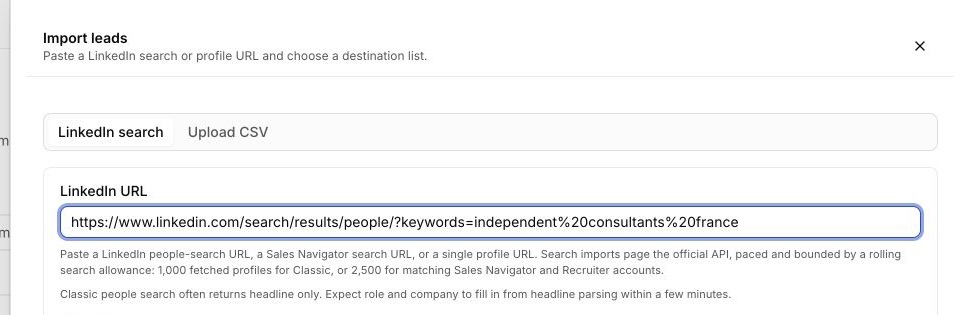
Open Add leads
Open Leads, choose Add leads, then keep LinkedIn search selected.
Paste the LinkedIn URL
Paste the complete people-search, Sales Navigator search, or individual profile URL. A company page, post, or unrelated LinkedIn route is not accepted.
Choose the LinkedIn account
Select LinkedIn account. Lemma shows the account in use and warns when its product does not match the search URL.
Set the maximum
For a search, enter Max profiles to fetch:
- up to 1,000 fetched profiles for Classic people search;
- up to 2,500 for a matching Sales Navigator or Recruiter account;
- one Lead for an individual profile URL.
Duplicates, Do not contact, unreadable rows, and existing Mission membership can reduce how many Leads are saved.
Choose a List
Optionally select a destination List or create one from the destination control. Leave it empty when the Leads should land only in the global library.
Choose Start import
Start import begins the asynchronous run immediately. There is no separate profile preview or final confirmation screen.
Monitor Recent imports
The run card can show:
- Pending
- Running
- Paused (rate-limited)
- Completed
- Failed
- Canceled
While the run is in flight, Lemma refreshes its metrics. Choose Cancel to stop an in-flight run. A completed run shows target, found, created, matched, skipped, and other available metrics plus a skip-reason breakdown.
Interpret the result
- Classic search often returns headline data first; role and company may be inferred from the headline a few minutes later.
- Matching Sales Navigator results usually contain more structured role and company data at import.
- Existing identities remain the canonical Lead rather than becoming a duplicate.
- A lower saved count can be a valid filtered result, not a failed import.
Common issues
No LinkedIn account is available
Connect one under Settings → Sender, then reopen Add leads.
The search and account do not match
Choose an account licensed for that search product or use a compatible search URL.
The run is rate-limited
The current run has stopped; it does not resume automatically. Wait for the LinkedIn cooldown, review the saved counts and destination, then start a new import. Existing identities are matched to their canonical Leads rather than intentionally duplicated.
The run failed
Read the error on the run card. Preserve the URL and counts when you contact Support.
Next action
Open Create and manage Lists if the imported Leads will be used in a Manual Mission.