
Responses is the first place to review what participants completed in a study.
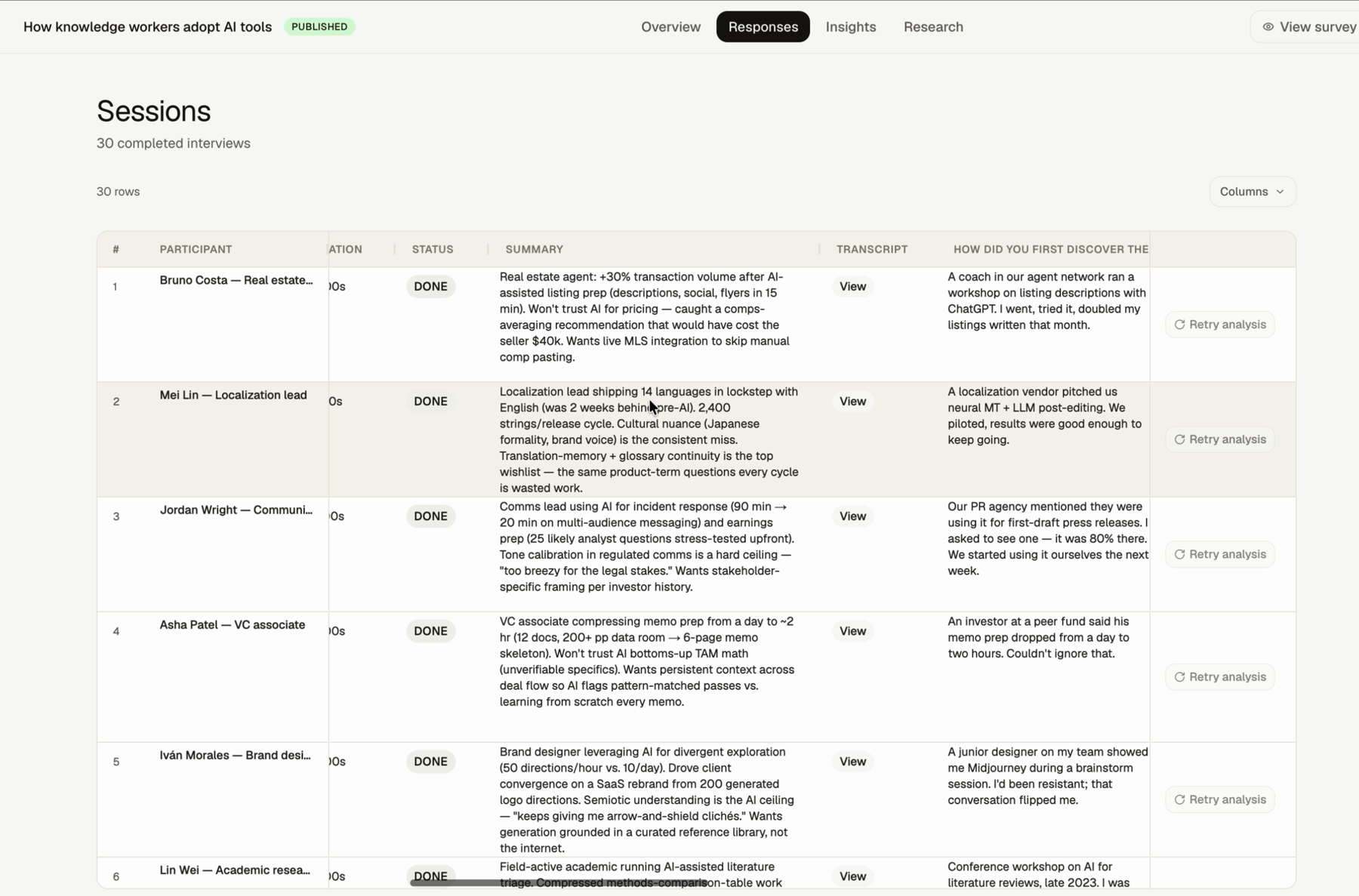
How To Review Responses
Step 1: Open the study
Open the study from the Studies dashboard.
Step 2: Open Responses
Use the Responses tab to view completed sessions.
Step 3: Scan the table
Review participant, started time, duration, status, summary, transcript, and answer columns.
Step 4: Open a transcript when needed
Use the transcript link when you need exact wording or context.
What To Look For
- completed sessions
- participant summaries
- transcript links
- per-question answers
- patterns that appear across multiple sessions
- one-off details worth checking in the transcript
FAQs & Common Issues
What does the summary column do?
It gives a quick view of a session. Use the transcript when you need to verify the exact source wording.
Why are there many answer columns?
Each question can appear as its own answer column, so the table may be wider than the screen.
Where do I go after Responses?
Open Insights for synthesis or Research to ask a specific question across the study data.